Scheduling File Transfers
CopyQueue makes file transfers easy to manage by providing a powerful Schedule feature that allows you to automatically start and stop copying files at specific times. In this guide, we’ll cover how to use the Schedule command to control your file transfer tasks, distinguish between different modes (started, stopped, and scheduled), and understand how start and stop times can be set for maximum flexibility.
Controlling the Queue
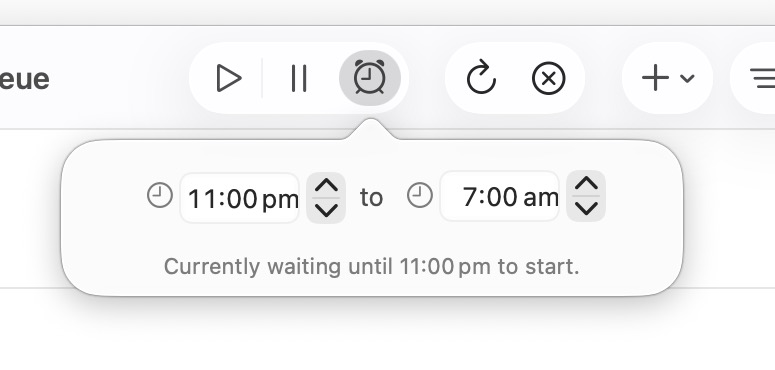
The copying process is controlled by three important buttons on the toolbar, which define which mode the queue is in: started, stopped and scheduled.
Started- This is the normal mode for copying files, and the queue begins transferring files immediately when they are added to the queue.
- The queue continues copying until all files are transferred or until you manually stop the queue.
- When stopped, the queue is inactive. No file transfers occur, and you can add or modify files in the queue without any copying starting automatically.
- You can manually stop the queue at any time if you need to pause the copying process.
- Starting the queue again will resume the file transfer from where it previously stopped.
- In scheduled mode, the queue will automatically start copying files at the specified start time and stop at the end time.
- When the button is pressed, a panel appears allowing you to set specific start and stop times for file transfers.
- The schedule panel lets you know whether the queue is currently running or waiting based on your configured settings. It also displays the exact time the queue is scheduled to start or stop next.
TIP
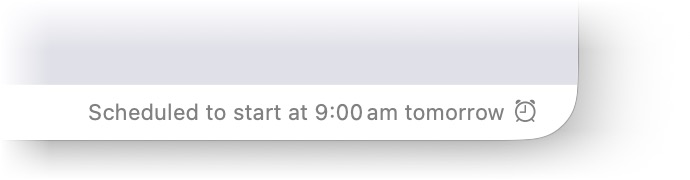
The Status Bar also indicates when the queue is scheduled and waiting to start.
How to Schedule File Transfers
To schedule your file transfers:
- Open the queue where you’ve organized the files you want to transfer.
- Go to the Queue menu and select Schedule, or press the button on the toolbar.
- A panel will appear where you can configure the start and stop times for your file transfer.
- Start Time: This is the time you want the copying process to begin. You can specify a time down to the minute, and CopyQueue will automatically start transferring files at this moment.
- Stop Time: This is the time you want the queue to stop copying files. If all files aren’t transferred by this time, the queue will pause and resume the process the next time it starts, either manually or through the schedule.
For example:
- If you set the start time to 9:00 PM and the stop time to 12:00 AM, the queue will start copying files at 9:00 PM tonight and automatically stop at midnight.
Understanding the Behavior of Start and Stop Times
When setting start and stop times for file transfers, CopyQueue will only copy files during the specific time window you define. Here’s how it works:
If the current time is between the start and stop times:
- If you set a schedule where the current time falls between the start and stop times, CopyQueue will immediately begin copying files. The transfer will continue until the specified stop time.
- For example, if it’s 8:00 PM and you’ve scheduled the queue to start at 7:00 PM and stop at 10:00 PM, the queue will immediately start (since it’s already within the scheduled window) and will stop automatically at 10:00 PM.
If the current time is outside the start and stop times:
- If the current time is before the start time, CopyQueue will wait until the specified start time to begin the file transfer.
- If the current time is after the stop time, CopyQueue will not start copying files until the start time occurs again, which may be tomorrow. For example, if it’s 11:00 PM and your schedule is set to start at 7:00 PM and stop at 10:00 PM, the queue will not copy files today, but will instead start copying tomorrow at 7:00 PM.
Transfers stop automatically at the stop time:
- Once the stop time is reached, CopyQueue will automatically pause the file transfer. If the copying isn’t completed by the stop time, the queue will resume at the next scheduled start time (either later today or tomorrow, depending on your settings).
- For example, if you set a schedule from 9:00 PM to 12:00 AM, and the current time is 10:00 PM, CopyQueue will start copying files immediately and stop at 12:00 AM. If files remain to be copied, the queue will resume copying the next time the schedule starts, possibly tomorrow night at 9:00 PM.
Example 1: Scheduling Later Today
Let’s say it’s currently 8:00 AM, and you set the following schedule:
- Start Time: 7:00 PM
- Stop Time: 11:00 PM
Since the current time is before the start time, the queue won’t begin copying until 7:00 PM tonight. It will then transfer files until 11:00 PM, after which the queue will stop.
Example 2: Scheduling Overnight Transfers
Imagine it’s 2:00 PM, and you set the schedule like this:
- Start Time: 11:00 PM
- Stop Time: 2:00 AM
The queue will wait until 11:00 PM tonight to start copying. It will run until 2:00 AM the next day, at which point the queue will pause automatically. If there are still files to copy, the transfer will resume at the next scheduled start time—11:00 PM tomorrow.
Key Points
- Files are only copied during the scheduled time window (between the start and stop times).
- If the current time is between the start and stop times, the queue will start copying immediately and stop at the specified end time.
- If the current time is outside the scheduled window (before the start time or after the stop time), file transfers won’t begin until the next available start time, which may be later today or tomorrow, depending on your settings.
This flexible scheduling ensures that file transfers happen exactly when you want them, making it easier to manage system resources and avoid interruptions.
Benefits of Using the Schedule Command
- Hands-free Automation: You don’t need to be present to start or stop the transfer. Just set the schedule and let CopyQueue handle the rest.
- Resource Optimization: Schedule your copying during off-peak hours (like overnight) to minimize system load and ensure faster, uninterrupted transfers.
- Energy Efficiency: The scheduled stop times help prevent unnecessary system usage, especially when copying large batches of files that may take hours to complete.
Managing Scheduled Queues
- At any point, you can modify the schedule times or override it by manually starting or stopping the queue.
- You can view and adjust the start and stop times through the Schedule option in the Queue menu or by pressing the button.
Conclusion
Scheduling file transfers with CopyQueue gives you full control over when and how your files are copied. Whether you need to run file transfers during specific hours, avoid peak times, or pause copying at certain intervals, the Schedule command provides flexibility and automation that can optimize your workflow. Try it out and experience hands-free file management!