File Verification
CopyQueue includes robust file verification that ensures your files are copied accurately. After copying, CopyQueue can automatically compare the source and destination files to confirm they match, providing extra assurance that no data has been lost or corrupted during the transfer process.
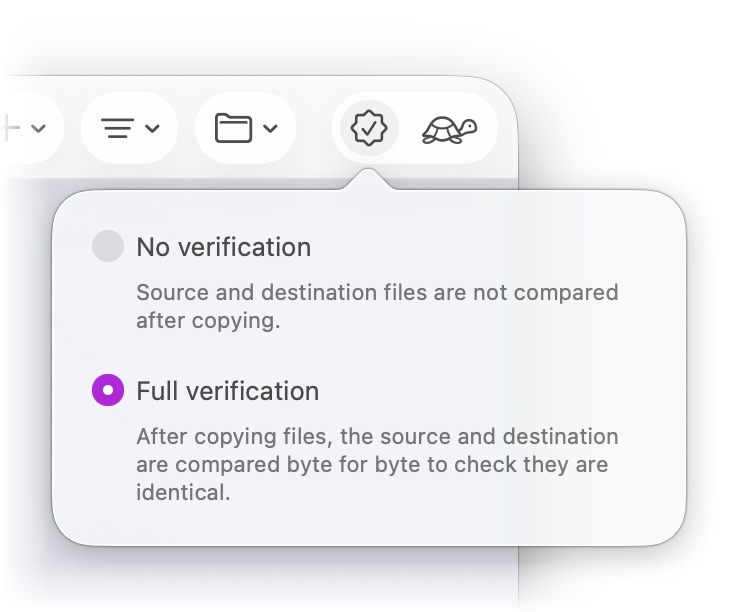
No Verification
- By default, file transfers are not verified. CopyQueue assumes the copy operation was successful without further checks.
- This is ideal when you need faster transfers or when you are copying files over a reliable medium where you are confident that no errors will occur, such as local storage or secure network environments.
- However, since the files are not compared, there is no way to confirm that the source and destination files are identical. If file integrity is critical, this may not be suitable.
Full Verification
- With full verification enabled, after the files have been copied, CopyQueue compares the source and destination files byte-for-byte to ensure that they are exactly identical. This process checks that no data corruption or errors occurred during the copying process.
- This is perfect for situations where data integrity is crucial, such as when copying important documents, databases, or any critical files where even the slightest corruption could be problematic. It is especially recommended for long-distance transfers, unreliable storage media, or sensitive data.
- This provides complete peace of mind by ensuring that the source and destination files are exactly the same. Any discrepancies will be flagged, allowing you to take corrective action.
- However, this verification will increase the total copy time because it performs an additional step to verify the data after the transfer. The larger the files, the longer the verification process will take.
Enabling Verification
Verification can be enabled at any time. Simply click the Verification button on the toolbar and select the desired verification level to apply to the whole queue. The verification process will be started for a task if it completes the copy process when verification is enabled.
The Verification Process
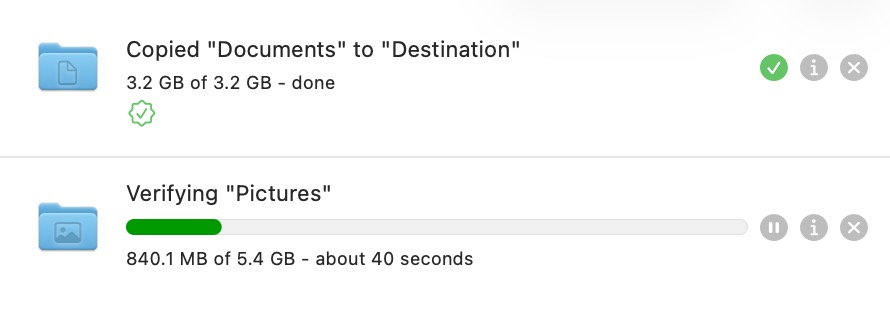
- During the verification process, you will see a green progress bar that indicates the current status of the verification for each task.
- The verification process can be paused and resumed at any time, allowing you to stop verification if necessary and continue it later without losing progress.
- Once a file passes the verification process, it is marked with a green checkmark icon beneath the progress bar, indicating the source and destination files are identical.
- If a file fails verification, it will be flagged with a warning icon. To resolve the issue, you can simply delete the corrupted destination file and retry the transfer. CopyQueue is smart enough to detect which file failed, so you don’t need to re-copy everything. Only the failed file will be re-copied, while the successfully transferred files remain intact.
Conclusion
With these options, CopyQueue gives you flexibility, allowing you to prioritize speed or reliability based on your specific needs. Whether you choose to speed up your transfer or ensure a perfect copy, the verification feature keeps you in control of your data integrity.