Handling File Transfer Failures
File transfers can fail for many reasons, but most issues can be resolved quickly. This guide explains how to identify the cause of the failure and what steps you can take to fix it.
1. Identifying the problem
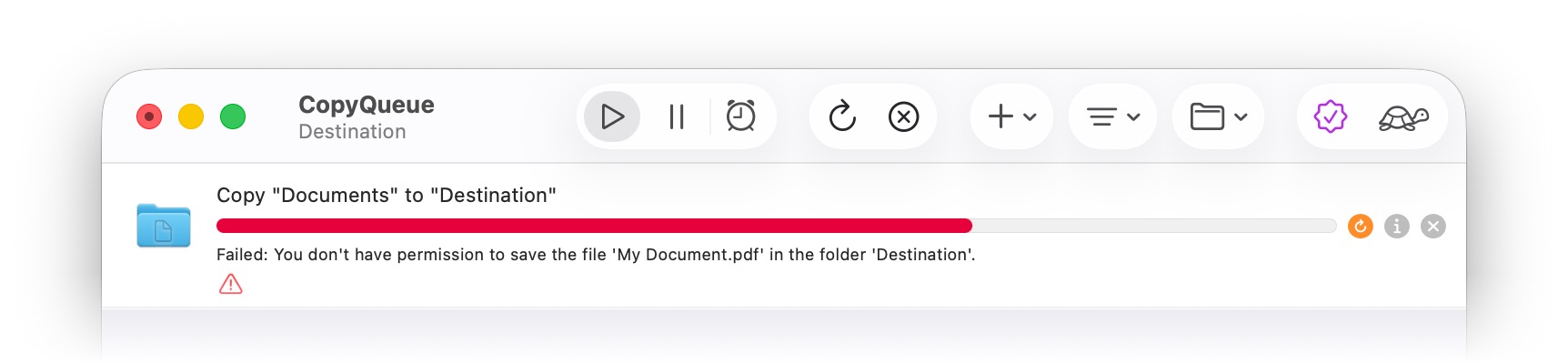
When a file transfer fails, the copying process will stop and the task will display the failure. An error icon appears on the task, and the error message is displayed below the progress bar. The next task in the queue will start copying, so progress is not blocked by the failure.
All progress up until the failure is retained, so files that were successfully copied don't need to be copied again.
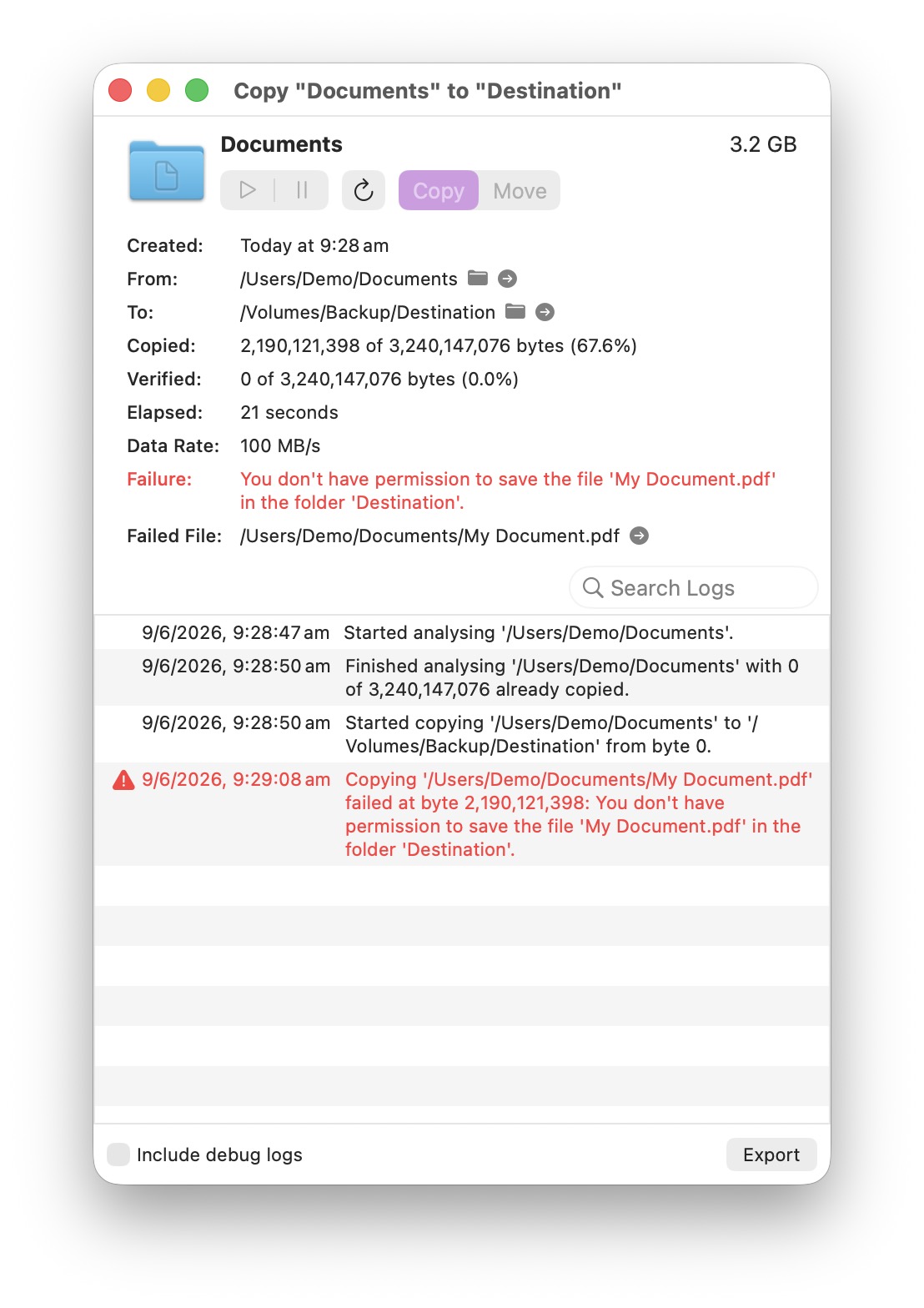
More detailed information is available in the Info Window which is displayed by clicking the button on the task. This includes the full error message and the exact file path where the error occurred. Click the button to reveal the failed file in Finder.
2. Resolve the issue
Different factors can cause a transfer to fail, and require different resolutions.
Some common issues are:
Insufficient Permissions
You may not have permission to read the source file or write to the destination folder.
Try: Adjusting permissions in Finder, or choosing a different destination.
Disk Full or Read-Only
The destination device may be out of space or mounted in read-only mode.
Try: Freeing up space, checking disk format, or remounting the drive.
Disconnected or Unavailable Device
External drives, network shares, or servers may disconnect during the transfer.
Try: Reconnecting the device or verifying the network connection.
File Locked or In Use
A file may be locked by macOS or open in another application.
Try: Closing the app using the file or duplicating it before copying.
Corrupted Source File
Occasionally, a file may be unreadable due to corruption. It is recommended to enable file verification in this situation to ensure the data is copied correctly.
Try: Testing the file manually and retrying to hopefully read it successfully on the next try.
Corrupted Destination File
CopyQueue may be unable to write a file due to corruption on the destination disk or network errors. It is recommended to enable file verification in this situation to ensure the data is copied correctly.
Try: Removing the incomplete destination file and retrying the task. Only the failed file needs to be removed.
Verification Failure
If the copied file doesn’t match the original during verification, the task will fail.
Try: Removing the incomplete destination file and retrying the task. Only the failed file needs to be removed.
3. Retry the transfer
After resolving the issue, the file transfer can be retried by clicking the button on the task, or using the 'Retry Failed Items' menu or toolbar button.
A queue can also retry failed tasks after a delay by enabling 'Automatically Retry Failed Items' in the menu. The delay is configurable in the settings. This is useful in situations where the copying process is unreliable, but may succeed after a few attempts.